

Clocking in and out
Tap Clock In on the Clock screen, and Paycheq times your shift and shows what you've earned as you go.
Clocking in
On Clock, choose the job (if you have more than one) and the rate.
Tap Clock In.
Leave the time as it is to clock in now. Or set an earlier time if you forgot, or a later one, up to 12 hours ahead, if your shift hasn't started yet.
Tap Clock In.
If you clocked in ahead, the card shows when your shift starts and counts down to it.
While you work
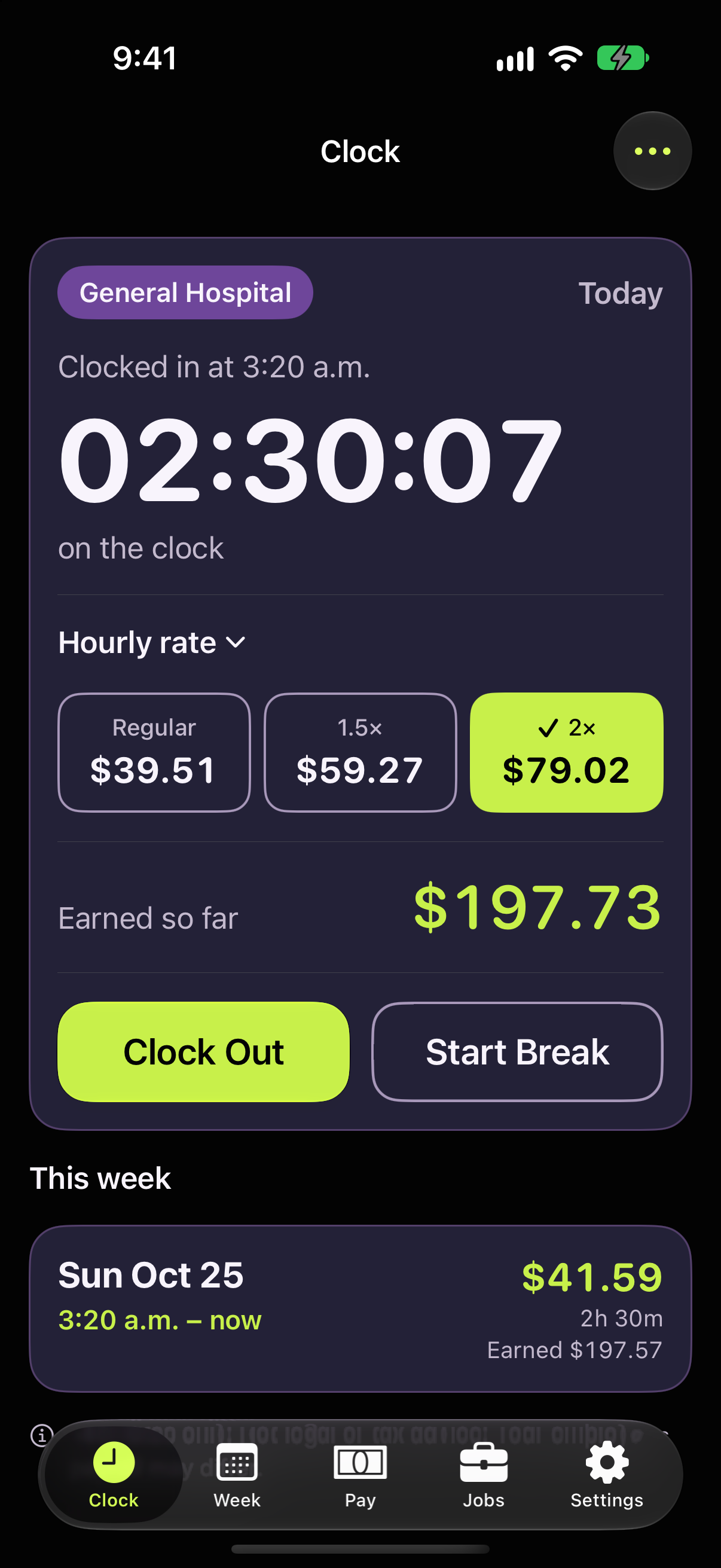
The big timer shows your time on the clock.
Hourly rate highlights the rate you're earning right now. It moves on its own when overtime, a Saturday or Sunday rate, or your overtime window starts.
Earned so far is your gross pay for the shift, including overtime.
Start Break pauses the clock: choose a Meal break or Rest break, and End Break when you're back. Whether a break is paid follows your job's rules.
To pay this one shift at a different rate, tap a rate, or tap Hourly rate to choose another rate you've added. The job's usual rate doesn't change.
Clocking out
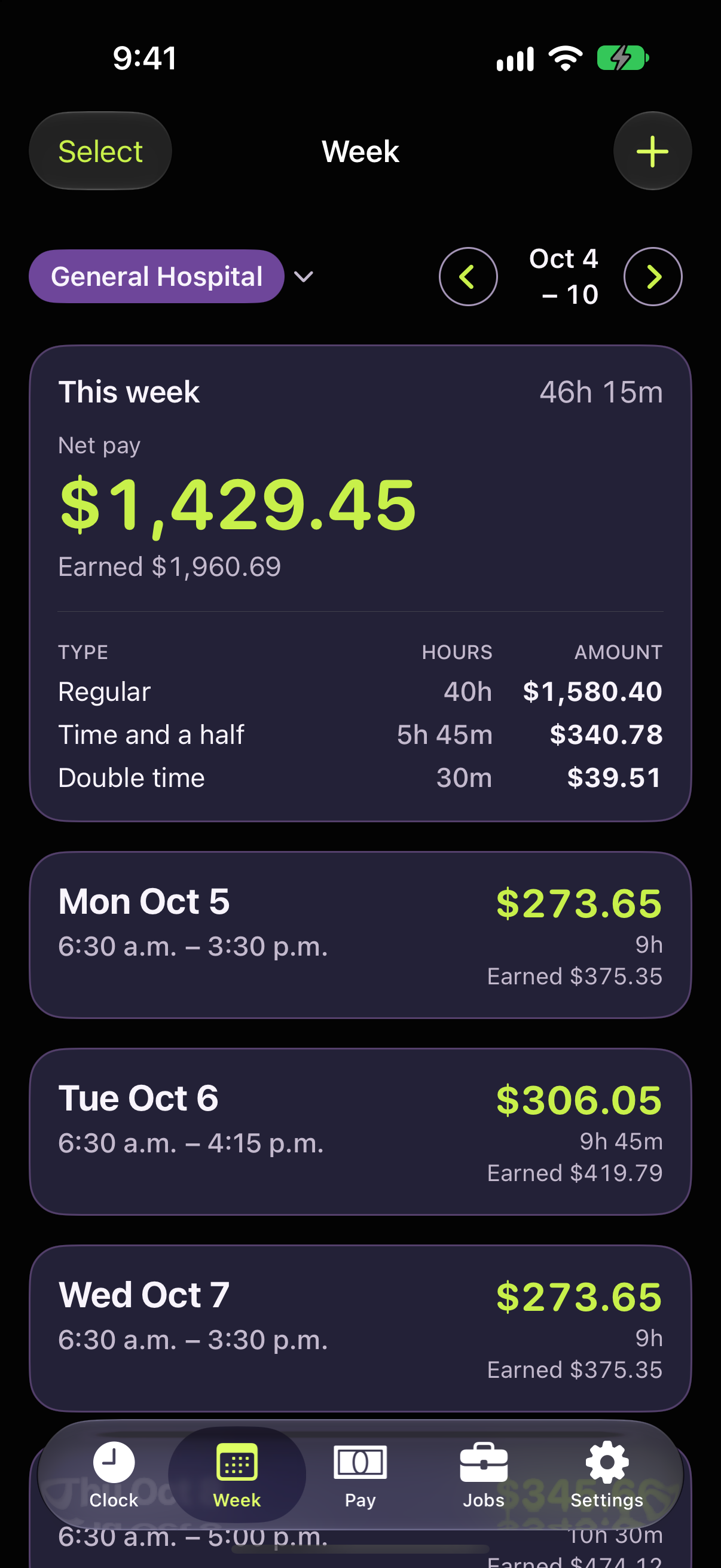
Tap Clock Out. The shift is saved to that day, and the Week and Pay screens update.
Fixing a mistake
Tap ⋯ while you're on the clock:
Edit start time if you clocked in late.
Discard this shift to throw it away; the time since you clocked in won't be recorded.
Add a shift to enter another shift by hand.
Good to know
Your shift keeps running if you close the app or restart your phone.
The Lock Screen and Dynamic Island show a Live Activity with the timer while you're on the clock.
You can only be clocked in to one job at a time.