

Set Up Your First Job
Paycheq asks a few questions, one per screen, then you're ready to clock in. Every answer can be changed later in Jobs.
The questions
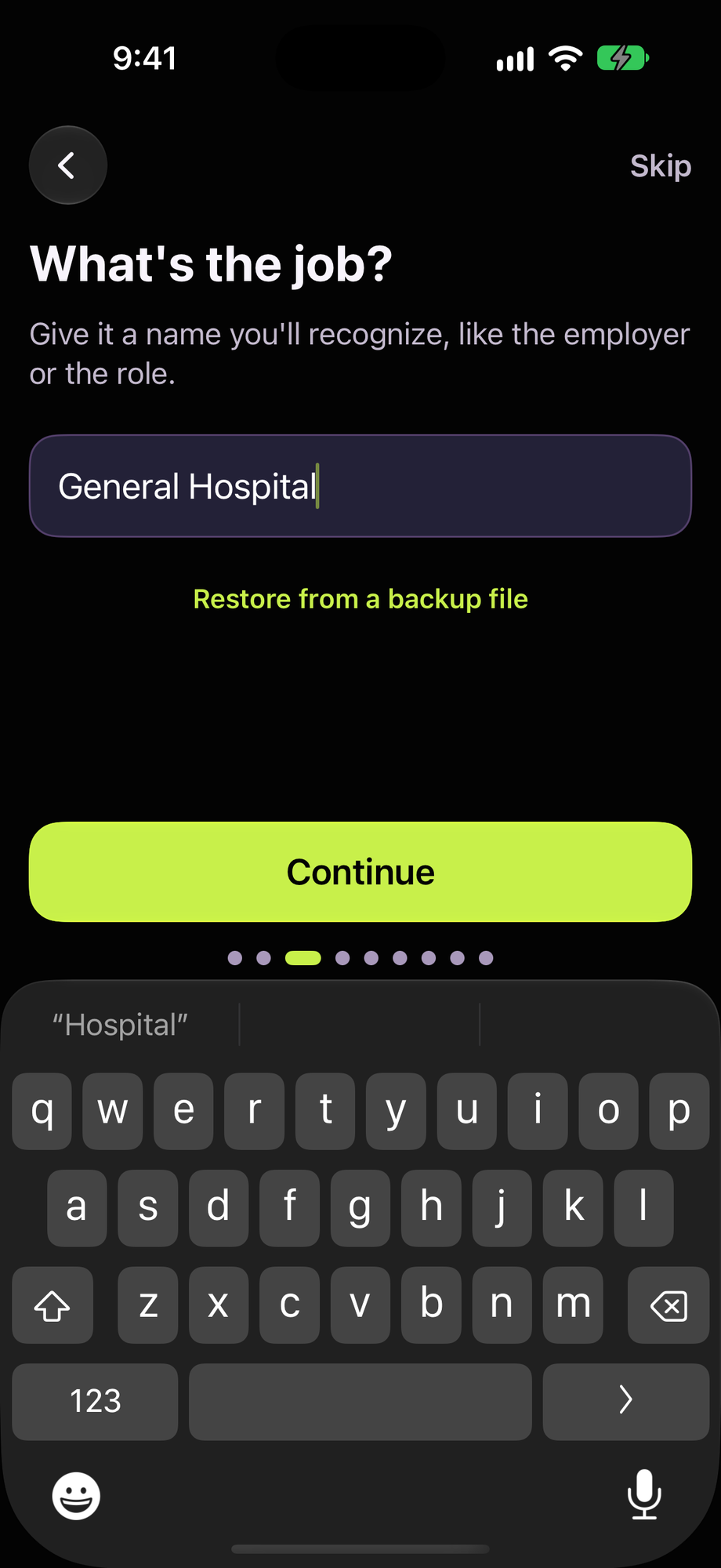
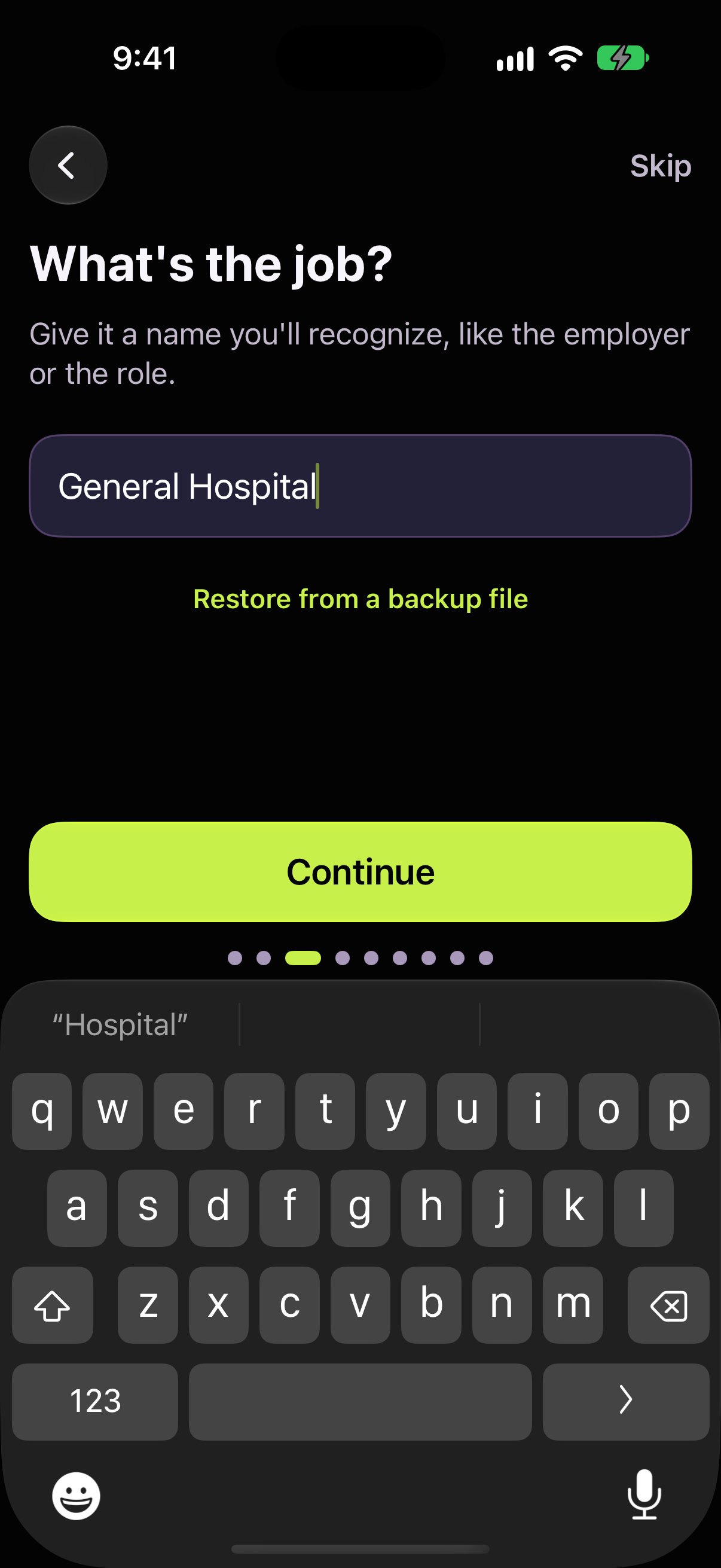
What's the job? A name you'll recognize, such as the employer or your role.
What's your hourly rate? Your usual rate before tax. You can add other rates later.
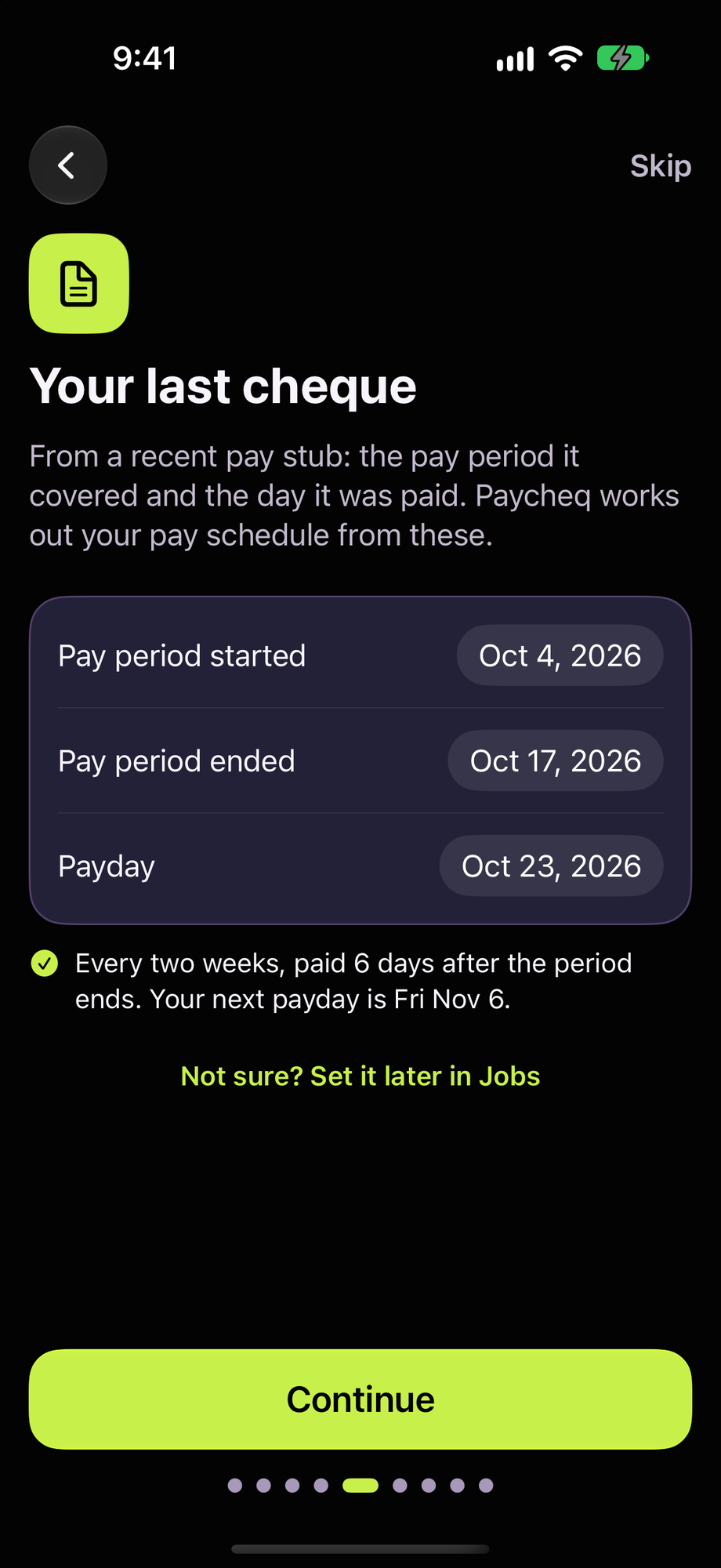
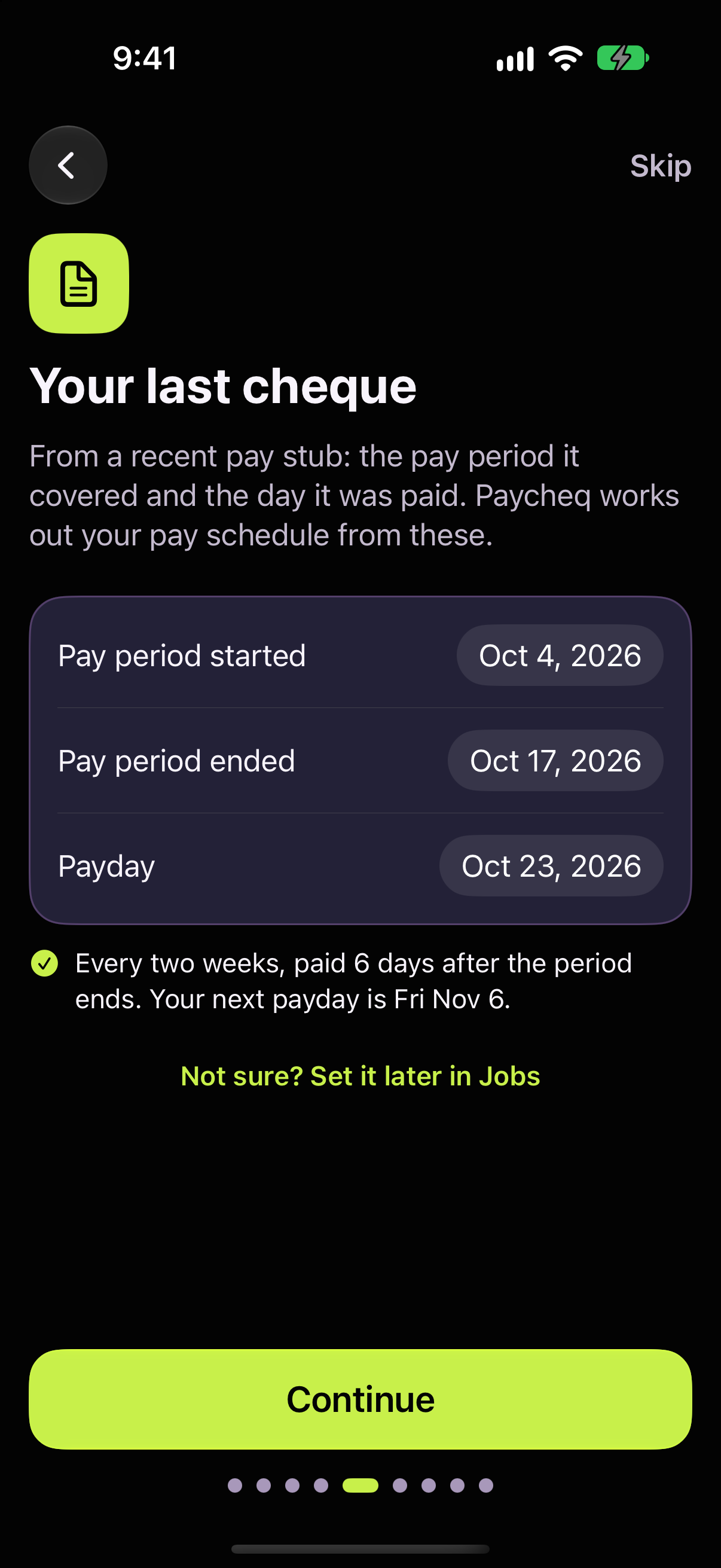
Your last cheque. Three dates from a recent pay stub: when the pay period started, when it ended, and payday. Paycheq works out your pay schedule from them. See Your pay schedule from your last cheque.
Do you have a union contract?
No: overtime and holidays follow your province's labour law.
Yes: you'll set your contract's overtime next, and can add its other rules any time.
When does overtime start? (union only) Daily, weekly or both, each with its thresholds and what they pay, such as 1.5× after 8 hours and 2× after 10.
Union dues (union only). The amount, how often it comes off, and when it last came off a cheque.
How should tax be estimated? Canadian payroll tax for your province, or a flat percentage.
Does your contract add any holidays? (union only) Tick any days your contract pays on top of your province's.
Try Pro free for 7 days (union only, without Pro). Contract rules are part of Paycheq Pro. Choose Not now to keep the free version; your contract is saved for later.
Earlier this year. Year-to-date amounts from your latest stub, so CPP and EI stop at the right time. You can skip this and add it later.
Daily reminders. A nudge to clock in and out, and iCloud Drive backup. These are only asked the first time you set up Paycheq.
Tap Start tracking on the last screen.
Changing your answers
Go to Jobs and tap your job. Everything from setup is there, plus more settings such as your start date, TD1 claims and exemptions.
Good to know
Adding another job goes through the same questions, apart from reminders. More than one job needs Paycheq Pro.
On a new phone, the first setup screen offers to restore your iCloud Drive backup. See Backing up and restoring.