

Your pay schedule from your last cheque
Enter the pay period and payday from a recent stub, and Paycheq works out your whole pay schedule.
What to enter
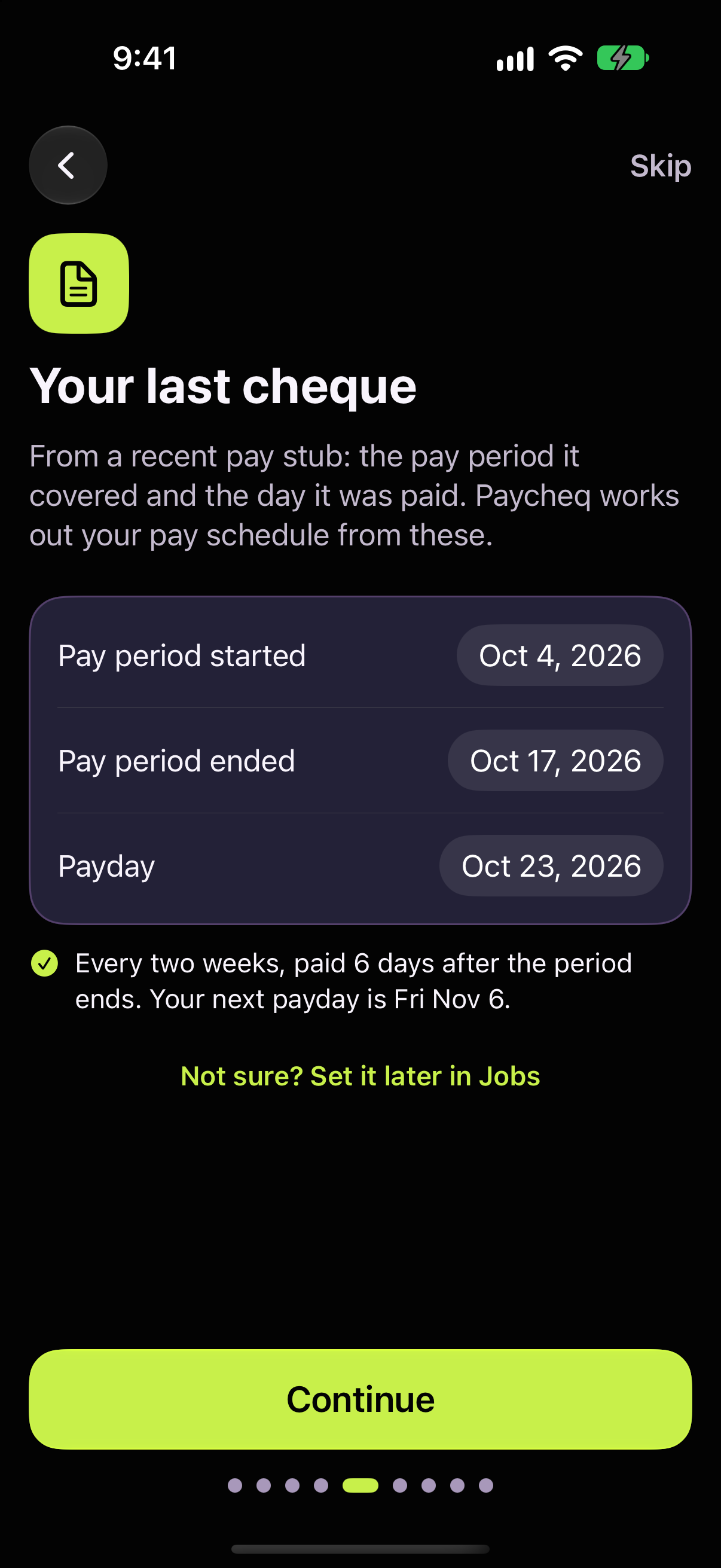
During setup, the Your last cheque screen asks for three dates from any recent pay stub:
Pay period started
Pay period ended
Payday
Paycheq shows what it worked out underneath, such as: Every two weeks, paid 6 days after the period ends. Your next payday is Fri Oct 30.
How it reads the dates
Your period | Your schedule |
7 days | Weekly |
14 days | Every two weeks |
The 1st to the 15th, or the 16th to the month's end | Twice a month |
A month from any day | Monthly |
The start date sets when every pay period begins, and the gap between the end and payday sets Paid _ days after a period ends.
Example: Oct 3 to Oct 16, paid Oct 22, is every two weeks, paid 6 days after the period ends.
If the dates don't fit
Paycheq tells you what's wrong, such as a 10-day period or a payday before the period ended. Check the dates against your stub, or tap Not sure? Set it later in Jobs.
Changing it later
Jobs → your job → Pay schedule: Pay frequency, A pay period started on, and Paid _ days after a period ends.
Good to know
Twice-a-month pay on fixed dates, such as the 15th and the last day, can land a day or two differently from cheque to cheque. Paycheq uses the gap from the stub you entered.
The payday you enter also becomes the starting date for your union dues and year-to-date amounts, so you don't type it twice.